




Skip to content

Remove Text from Video

Upload a clip, mark the burned-in text, and download a clean MP4 with the background rebuilt. Audio, duration, and frame size stay unchanged.

PRE-RENDERED SAMPLE

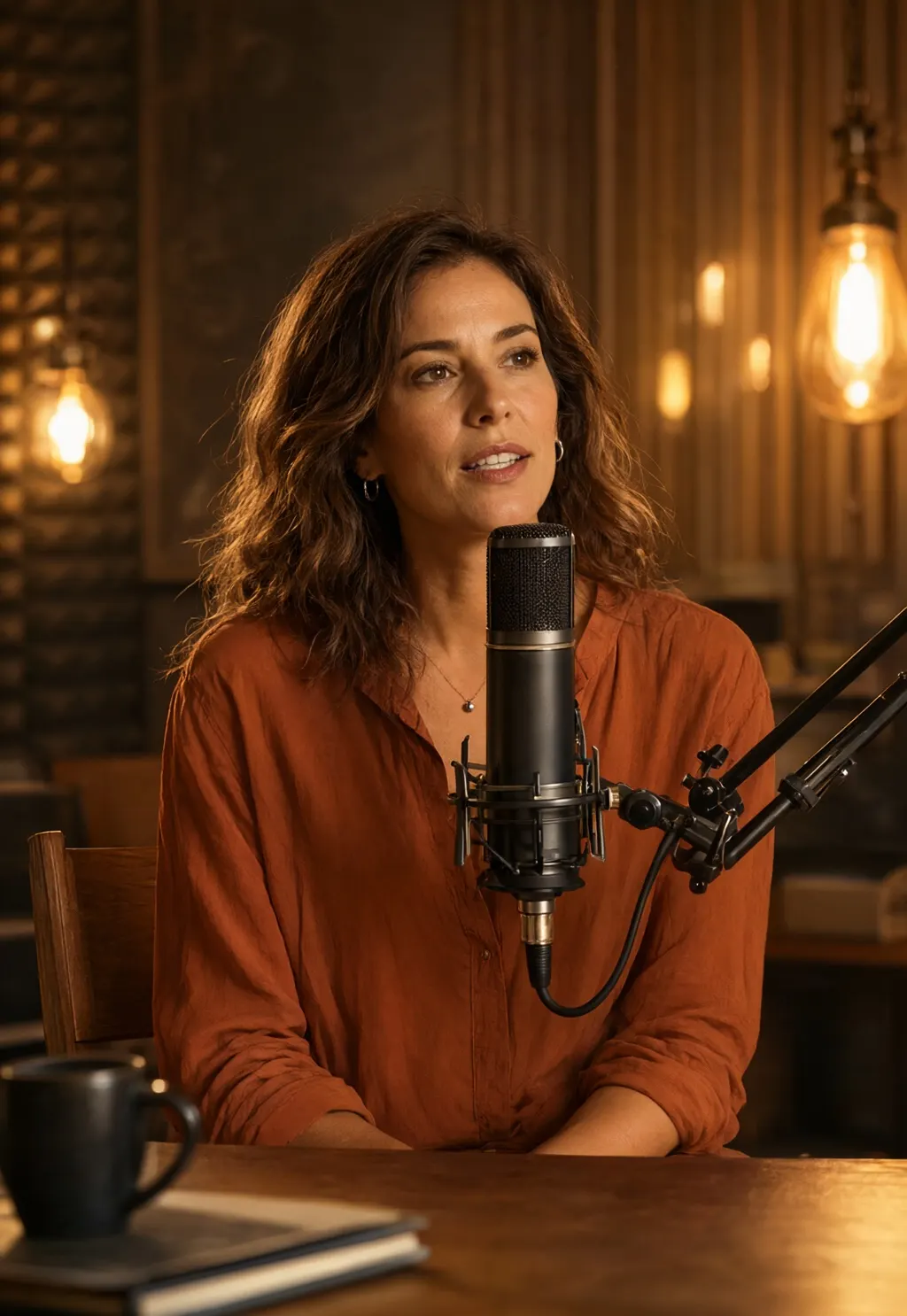
A burned-in caption on an interview clip

MP4

THIS CHANGES EVERYTHING

Before

or drop a file here

No clip handy? Try one of these

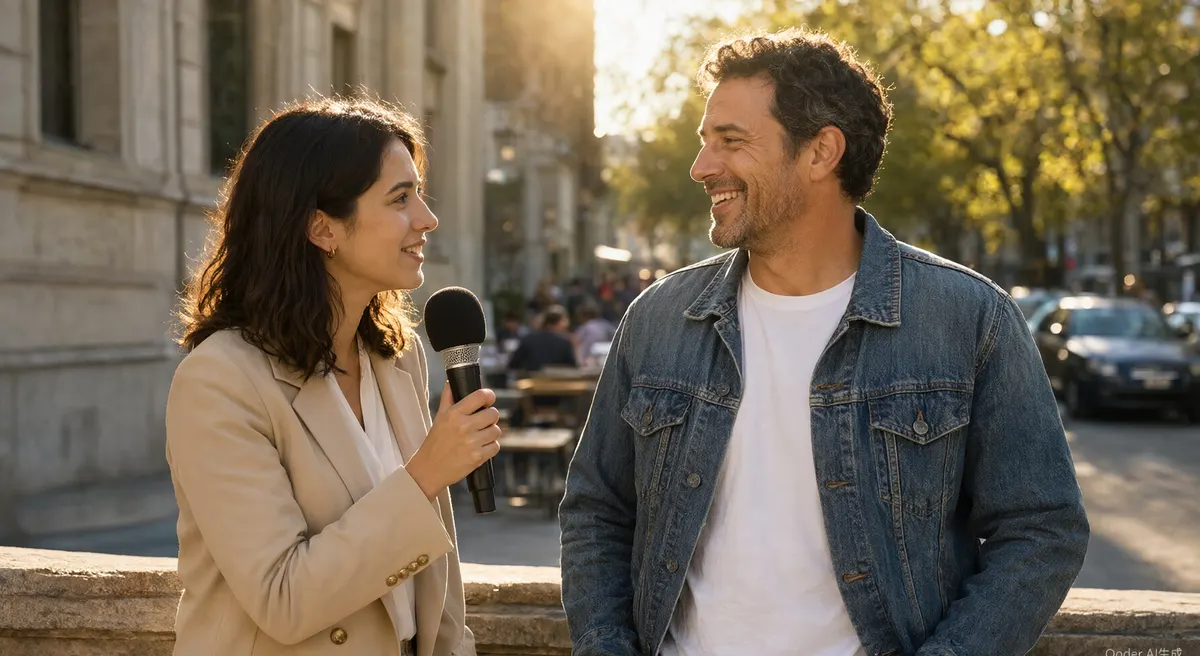
View the interview sampleView the product sampleView the archive sampleView the gaming sample

This demo renders in your browser. Your file never leaves your device.

At a glance
  • MP4 · MOVInput formats
  • 200 MB · 10 minFile and clip limit
  • Google sign-inFree quota account
  • 30 credits / monthFree processing
  • Tab openUntil download
  • No uploadSample

Before / after

The same clip, with and without the baked-in text

The cleaned version plays first. Hover, press, or use the corner button to see the original.

AFTER

Dialogue

Lower third across a bridge railing

One caption line sits over the iron bars. The rebuild keeps the rail edges straight instead of smearing them into the sky.

5s · Auto · Tears of Steel (CC BY 3.0)

AFTER

Dialogue

Subtitle over a dark uniform

White text on a dark shoulder is the forgiving case: the fill has almost no detail to invent.

5s · Auto · Tears of Steel (CC BY 3.0)

AFTER

Bright pass

Caption against a bright skyline

A flare burns right behind the words. Check the halo at both ends of the cue before publishing.

5s · Auto · Tears of Steel (CC BY 3.0)

AFTER

Moving shot

Two caption lines over a walking subject

Both cues are replaced in one pass while the camera and the subject keep moving.

5s · Auto · Tears of Steel (CC BY 3.0)

AFTER

Watermark

TikTok logo moving across the frame

The logo and @handle shift position while a burned caption changes. Both are gone and the crowd behind them is rebuilt.

5.3s · Auto · TikTok @nasa

AFTER

Watermark

TikTok logo on a Moon base animation

The watermark sits on crater texture and title lettering. The repair keeps the ground detail instead of leaving a soft patch.

3.9s · Auto · TikTok @nasa

Plays the cleaned clip. Hover, press, or tap the corner button to see the original.

The toolkit

One cleaner workflow for every overlay

Pick the kind of text you are dealing with. Every mode runs on the same clip, the same audio, and the same frame size.

How it works

How to remove text from video in three steps

No timeline, no keyframes, no export settings. The workflow is built around one job: remove what is burned in.

Step 1Upload

Upload your clip

Drag a file in or choose it from your device. We check the format, size, and duration before anything is charged.

  • MP4 or MOV, up to 200 MB and 10 minutes
  • The uploaded clip is processed as a whole — trim first
  • See Privacy for live-job retention
Step 2Mark

Mark what to remove

Use Auto to scan the whole frame, or Select area to repaint a specific box. Everything inside a box is affected, not just text.

  • Auto scans the full frame for text
  • Select area limits the repaint to your boxes
Step 3Download

Download the clean clip

We rebuild the background, keep the audio, and re-encode an MP4 with the same frame size. Review it before you publish.

  • Audio and duration preserved
  • Same aspect ratio as the source
  • Source-resolution export
Upload a video

30 free credits every month. No card required.

Free every month

A free AI video text remover for the first 30 credits

The sample clip is free in your browser. Every account gets 30 free credits each month: 30 seconds in Auto, or 15 seconds in Select area. It is a metered free tier, not unlimited.

Try the free sampleThe sample never uploads. Live-job retention is covered in the Privacy Policy.
30 creditsFree every month
  • Free sample in the browser; no sign-up needed
  • 30 free credits every month; no card required
  • 5-second minimum per job; the uploaded clip must fit the quota
  • Auto uses 1 credit/sec; Select area uses 2 credits/sec
  • Source-resolution export with no CleanVideoText watermark
  • Keep the tab open while a live job runs; there is no email queue yet

What it handles

What can CleanVideoText clean?

Five kinds of text, one workflow. If it is visible in the frame and you have the rights to edit it, start with a box or subtitles mode.

Upload a clip

The sample never uploads. Live jobs go to the processing provider; see the Privacy Policy for retention.

Dialogue baked into the picture, including translated captions. Soft subtitle tracks are a different problem — remove those with a remux, no AI needed.

Captions and stickers saved into a TikTok, Reel, or Short. Works best when the text stays in one area for several seconds.

Creator tags, LIVE badges, chat snippets, and follower counters. Moving handles need a tight box or the subtitles workflow.

Brand marks and on-pack copy on footage you own or are licensed to use. We do not accept third-party watermark removal.

Camcorder dates, channel marks, and old tape stamps. Low-contrast text on detailed backgrounds is the hardest case.

CASES & LIMITS

Choose a mode from the scene

The sample video above is pre-rendered. These scenarios explain which control fits the text and what to inspect before a live render.

  1. EASIER

    01

    Fixed dialogue subtitles

    Lower-band captions over a steady wall or soft-focus scene give the model more nearby detail to rebuild.

    Mode
    Auto
    Check
    Review the first and last frame of each subtitle.
  2. MOVING TEXT

    02

    Word-by-word social captions

    Auto scans the frame for text. Use Select area when you only want to target a fixed region.

    Mode
    Auto or Select area
    Check
    Fast motion and busy scenes can soften the repaired patch.
  3. OWNED FOOTAGE

    03

    Handles and stickers

    A tight Select area box can target a fixed username or sticker, but everything inside the box is repainted.

    Mode
    Select area
    Check
    Use footage you own or are licensed to edit.
  4. HARD CASE

    04

    Text over faces or fine detail

    There may be too little nearby information to rebuild the covered area accurately.

    Mode
    Auto or Select area
    Check
    Test the hardest five seconds; plan manual cleanup if needed.

The video above is a pre-rendered browser sample, not output from the live engine and not a render of your uploaded clip.

Compare the routes

Blur hides text. CleanVideoText rebuilds the frame.

Four ways to deal with burned-in text, and where each one actually works.

Compare the routesCropCheap, loses compositionBlur / coverText becomes a shapeRe-edit from sourceCleanest if you have itCleanVideoTextRebuilds the background
Text is goneWith the frameNo, it is coveredYesYes
Keeps the original framingNoYesYesYes
Keeps background detailNoNoYesRebuilt
Works on moving textSometimesNoYesTracked box
Keeps the audioYesYesYesYes
Needs the source projectNoNoYesNo

Swipe to see all columns

Comparison describes workflows, not measured output quality. Re-editing from the original project is still the cleanest option when you have it.

No blur bars

We do not cover text with a shape. The area is rebuilt and the rest of the frame stays untouched.

Audio untouched

The original audio track and timing are preserved in the export.

One frame size

The output keeps the source aspect ratio, so it drops back into your edit.

Limits up front

Format, size, duration, credits, and processing time are shown before you start.

FAQ

Common questions about removing video text

Straight answers about modes, limits, audio, privacy, and what happens when the background is too complex.

Still unsure? Email us before you spend credits.

support@cleanvideotext.com
Q: How do I remove text from a video?

Upload the clip, choose Auto to scan the full frame or Select area to draw boxes, then download the clean MP4. The live engine processes the whole uploaded clip, and credits follow its length.

Q: Can I remove text from video online free?

The sample clip is free in your browser. Every signed-in account gets 30 free credits each month: 30 seconds in Auto, or 15 seconds in Select area. The uploaded clip must fit the quota, and each job has a 5-second minimum. Exports keep the source resolution and carry no CleanVideoText watermark.

Q: Is there a free text remover for video that keeps the audio?

Yes. The sample demo and the free monthly credits use the same workflow: the original audio and duration are preserved and the output keeps the source frame size and resolution. Check the file before publishing.

Q: Does CleanVideoText use AI to remove text from video?

Yes. A worker rebuilds pixels behind text across the clip. Auto scans the full frame for text-like regions; Select area sends a mask and repaints everything inside your boxes, not just text.

Q: Can I delete or erase text from a video without a blur bar?

That is the main use case. CleanVideoText rebuilds the background instead of covering it, so there is no blur bar, mosaic, or crop. On complex backgrounds the rebuild can still leave artifacts, so review the result before publishing.

Q: How long does it take to remove text from a video?

Processing time depends on clip length, resolution, and background complexity. Keep the tab open until the download is ready; there is no email notification or background queue yet. The credit cost is shown before you start.

Q: What is the difference between Auto and Select area?

Auto scans the full frame for text-like regions. Select area repaints everything inside the boxes you draw, so keep boxes tight and away from details you want to preserve.

Q: Can it remove text from a moving subject?

Sometimes. Short, slow movement with a clean background works best. Fast movement, text over faces, or text next to a logo you need to keep will need a tighter box and a review — and the result may still need manual cleanup.

Q: Does it keep the audio?

The workflow is designed to preserve the original audio and duration, then re-encode the MP4. Always check the downloaded file before publishing.

Q: What formats and limits apply?

MP4 or MOV, up to 200 MB and 10 minutes. Trim larger or longer files first. The live engine processes the whole uploaded clip, so its length is what gets charged.

Q: Can I process only part of a video?

Not in the live engine yet. It processes the whole file you upload, and the credit total follows that clip length. Trim a five-second test clip or the final segment in your editor before uploading.

Q: Does it remove soft subtitle tracks?

Not inside the app. A soft subtitle track is a separate stream, so remove it with a remux in FFmpeg, HandBrake, or your editor — no AI is needed. The AI workflow is for text burned into the picture.

Q: How much does it cost?

Auto uses 1 credit per second; Select area uses 2 credits per second because it sends a mask. Each job has a 5-second minimum. Every account gets 30 free credits each month, and packs are listed on the pricing page.

Q: Is my video private?

The sample never uploads. Live jobs are sent to the processing provider only to run the requested job; see the Privacy Policy for retention. We do not use your footage for model training, and we do not send media, file names, or mask coordinates to analytics.

Q: Do you remove watermarks from other people's footage?

No. We only support footage you own or are licensed to edit. Removing a third-party watermark to redistribute someone else’s work is not allowed.

Built for burned-in text

Start with 30 free credits

Sign in with Google, upload a clip, and see what the background looks like after the text is gone.

Upload a video30 free credits every month. No card required.

CASES & LIMITS

Choose a mode from the scene

The sample video above is pre-rendered. These scenarios explain which control fits the text and what to inspect before a live render.

  • Fixed dialogue subtitles

    Review the first and last frame of each subtitle.

  • Word-by-word social captions

    Fast motion and busy scenes can soften the repaired patch.

  • Handles and stickers

    Use footage you own or are licensed to edit.

Ask AI

Not sure which route fits? Ask your AI.

A ready-made question about burned-in subtitles, soft tracks, and the trade-offs opens in a new chat.

The question is prefilled where the AI supports it. If not, it is copied to your clipboard — paste and send.