
01
Repost with your own message
Keep the scene and remove the original caption before adding a new hook in your editor.
AI video text remover
Downloaded TikToks arrive with captions, handles, and sticker text rendered into the video. Upload the clip, mark the text, and get a clean MP4 — no crop, no blur bar, no re-edit.
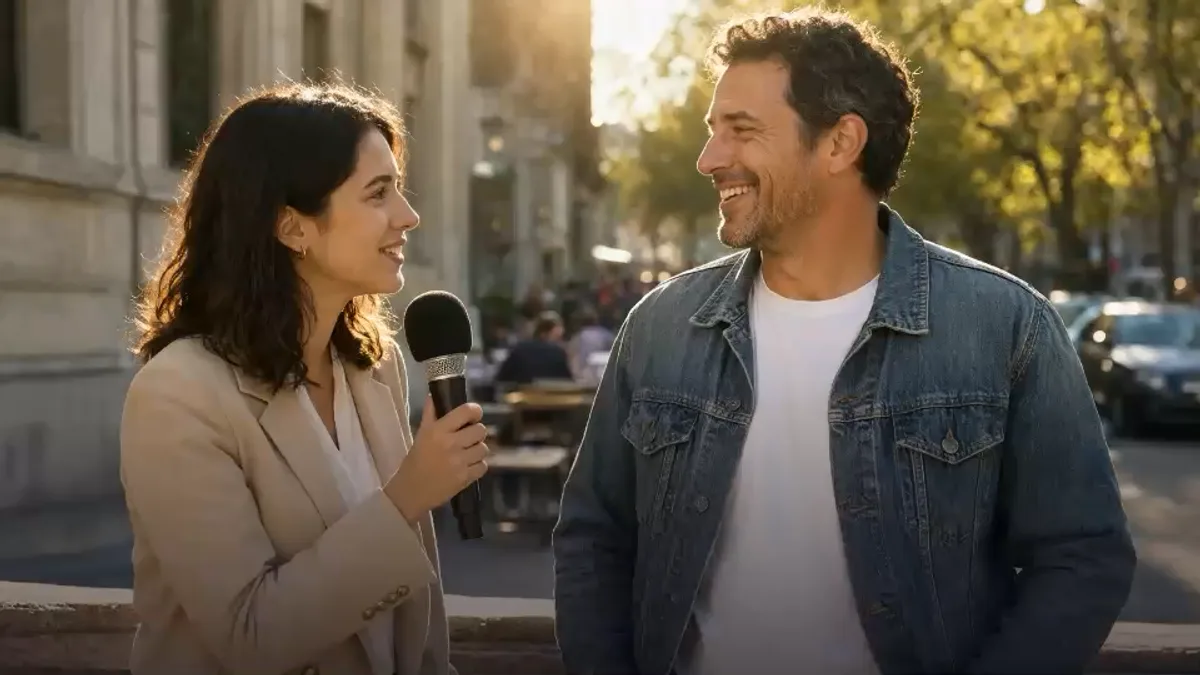
THIS CHANGES EVERYTHING
BEFOREAFTERor drop a file here
No clip handy? Try one of these


This demo renders in your browser. Your file never leaves your device.
Captions and handles are hardcoded in saved clips. The TikTok watermark is a separate problem.
Three kinds of TikTok text
A caption is the line near the bottom of the video. A handle or username usually sits above it. Sticker text and effects can appear anywhere, including over the subject.
Select area is the most reliable mode for saved TikToks because you decide exactly what disappears. Subtitles mode is faster when the caption stays in one band for the whole clip. The subtitles workflow explains how that tracking works.
The moving TikTok watermark is not part of this workflow. It needs its own validated model and is not offered yet. If you are dealing with dialogue captions rather than a handle, start with remove subtitles from video.
Need a method overview first? How to remove text from a video compares four routes and their limits. Cleaning Reels or UGC rather than a saved TikTok? Use the captions workflow.
Before you upload
Screenshot a frame and look for three separate layers.
Removing a watermark from someone else's video is not an accepted use of this tool.
Why clean a saved TikTok
Keep the scene. Replace the message.
Keep the scene and remove the original caption before adding a new hook in your editor.
Clean captions and handles from a UGC ad, then add the new market’s hook without cropping the subject.
Remove the original-language caption and add subtitles for a different market.
A caption is wrong or outdated. Remove it instead of reshooting the video.
What clean looks like
Illustrative frames. Compression and motion decide how clean the repair looks. Test the busiest frame before you commit to the full clip.
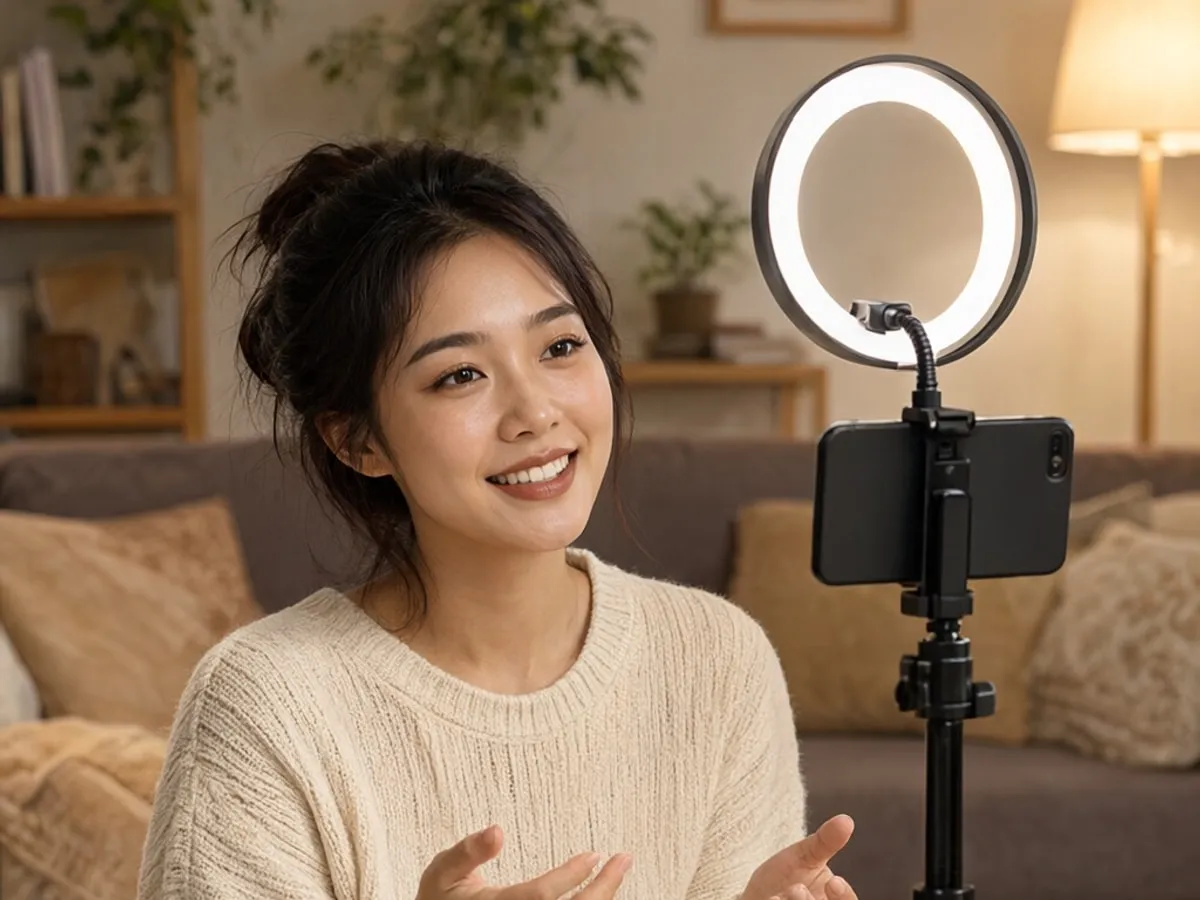
A caption that stays in one lower band is the safest case. Remove it with Subtitles mode or one tight box.
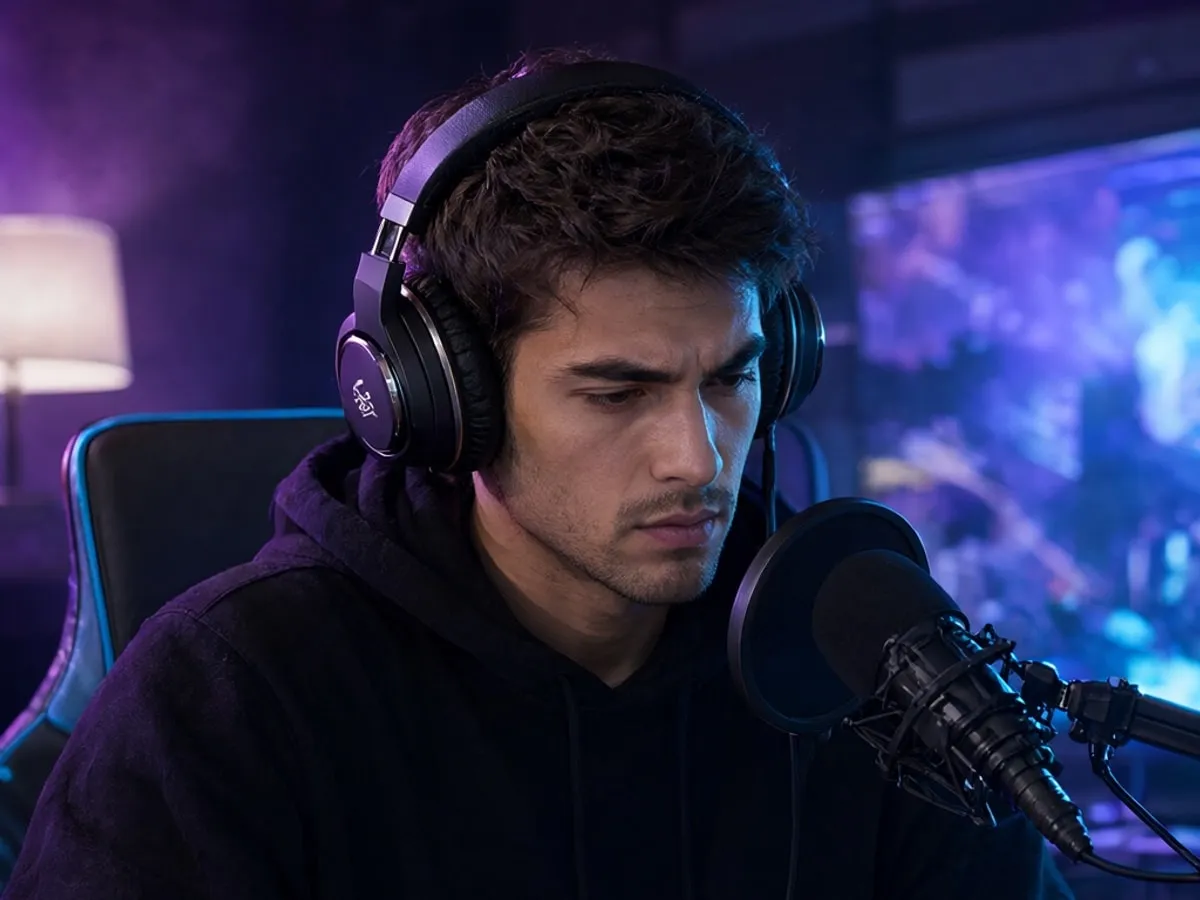
Box each position, or switch to Select area. Expect the repaired patch to soften when the background moves behind it.
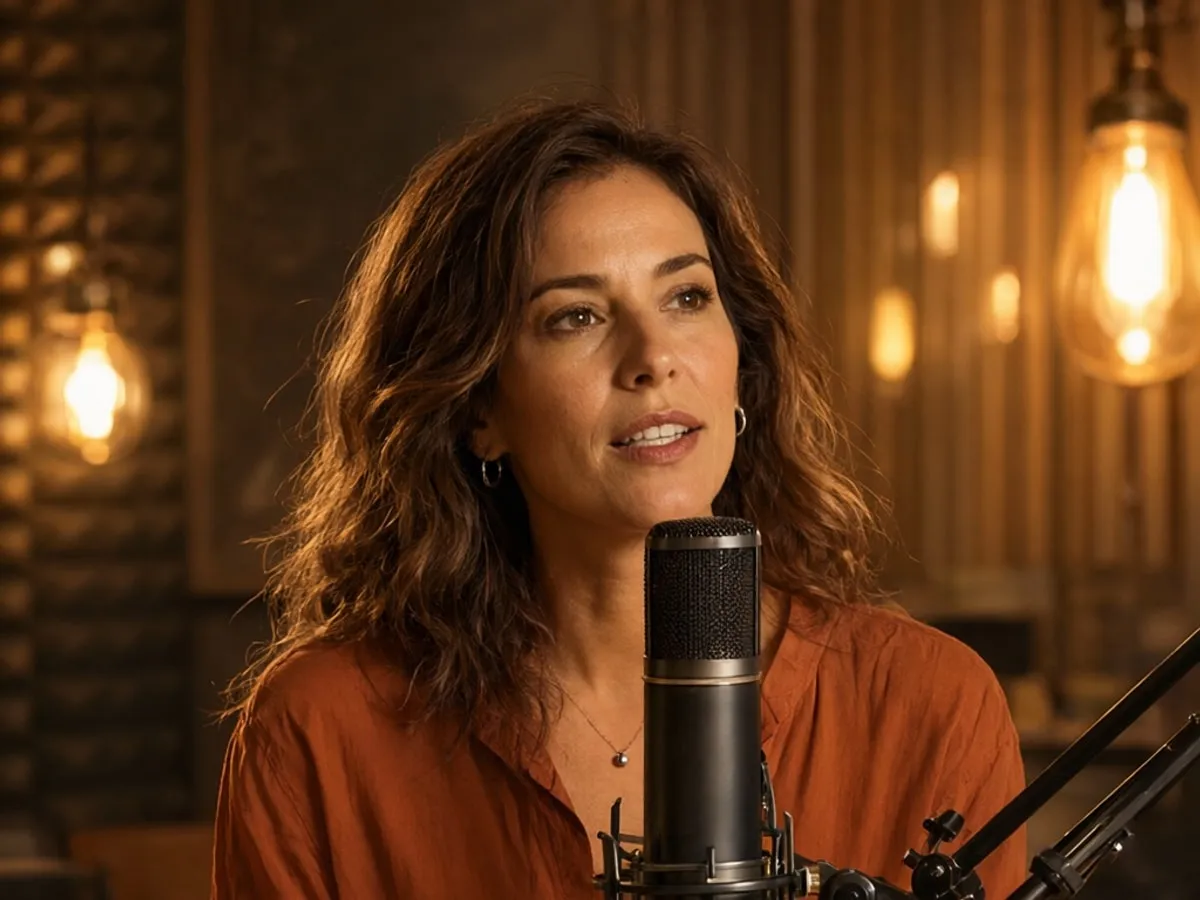
Heavy TikTok compression plus a moving subject can leave visible smears. If the test clip fails, plan a manual cleanup pass.
The live engine processes the whole uploaded clip. Trim a short test clip first and keep the original file for the final pass.
Try a sample clipWhere TikTok cleanup gets hard
Audio and frame size are unchanged. Review the result before you download.
Upload a videoThe sample never uploads. Live jobs go to the processing provider; see the Privacy Policy for retention.
FAQ
What the tool can clean in a downloaded clip, and what it cannot.
Still unsure? Email us before you spend credits.
support@cleanvideotext.comYes, when the caption is burned into the video. Upload the saved MP4 or MOV, choose Select area, box the caption, and render. The live engine processes the whole uploaded clip, so trim it first if you only need part.
Save the clip, trim it to the part you need, upload the MP4 or MOV, choose Select area, box the caption or handle, and render. A tight box removes only the text area and leaves the rest of the frame intact.
The sample is free. Google sign-in adds 30 free credits each month: 30 seconds in Auto or Subtitles, or 15 seconds in Select area. A 5-second minimum applies. The uploaded clip must fit the quota, so trim longer videos first. Exports keep the source resolution and carry no CleanVideoText watermark.
Not in the live engine yet. It processes the whole file you upload. Trim a short test clip in your editor, check the result, then upload the final segment. Credits follow the uploaded clip length.
No. Keep this tab open until the download is ready. There is no background queue or email notification yet.
The workflow is designed to keep the original audio and duration, and a 9:16 clip stays 9:16. Check the download before reposting.
Yes. Select area and Subtitles rebuild the marked region instead of cropping, so the export keeps the source frame size. How clean it looks depends on what sits behind the text.
Not yet. The watermark moves and needs a separate validated model. This tool is for captions, handles, and sticker text inside footage you own or are licensed to edit.
Use Subtitles when the caption stays in one lower band for the whole clip. Use Select area when the text moves, when a handle sits separately, or when stickers appear over the subject.
Yes. The export keeps the source aspect ratio, so a 9:16 clip stays 9:16. No crop is applied by the removal workflow.
The workflow is designed to preserve the original audio and duration, then re-encode the MP4. Check the file before you repost.
Sign in with Google, upload a clip, and see what the background looks like after the text is gone.
Ask AI
A ready-made question about burned-in subtitles, soft tracks, and the trade-offs opens in a new chat.
The question is prefilled where the AI supports it. If not, it is copied to your clipboard — paste and send.


