
01
Ad localization
A UGC ad or product clip arrives with burned-in captions in one language. Remove the band, then add a new hook and subtitles for another market.
AI video text remover
Burned-in subtitles live in the pixels, so hiding them with a bar or a crop damages the frame. Upload the clip, select the caption band, and get an MP4 with the dialogue removed and the background rebuilt.
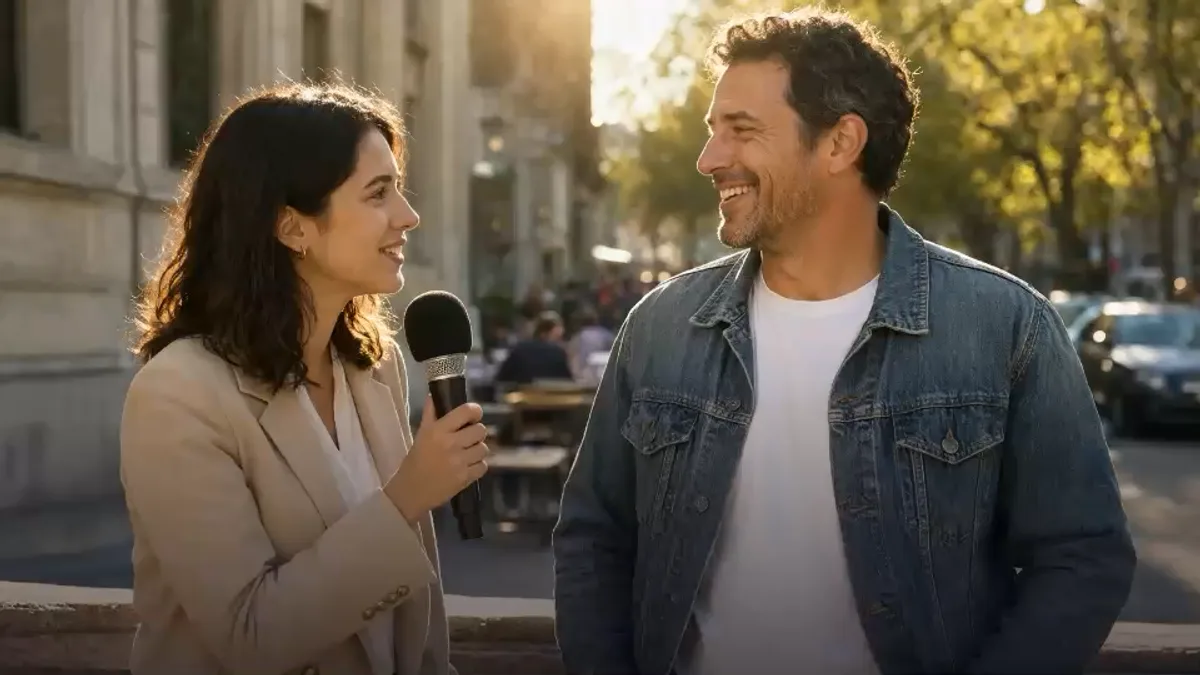
THIS CHANGES EVERYTHING
BEFOREAFTERor drop a file here
No clip handy? Try one of these




This demo renders in your browser. Your file never leaves your device.
Best for hardcoded subtitles. Soft subtitle tracks can be removed without AI.
Soft vs hardcoded
A soft subtitle track is a separate stream inside the container. Players can switch it on or off. You can remove it with a remux — no pixels change, no AI needed.
Hardcoded subtitles were rendered into the video frames. Every pixel of that caption is part of the picture. Cropping removes the text but also part of the shot; a blur leaves a visible band. CleanVideoText tracks the caption region and rebuilds what is behind it. If you want to weigh the alternatives first, read remove text from video without blur.
If you are not sure which one you have, turn subtitles off in your player. If the words stay on screen, they are hardcoded. The hardcoded subtitles guide walks through the remux and rebuild routes side by side.
Working on a saved TikTok instead? The TikTok caption remover is set up for caption, handle, and sticker boxes. If you mean social captions rather than dialogue, use the separate captions workflow.
Quick check
Match the symptom to the right route before you upload.
Trim the hardest five seconds into a separate test clip; the live engine processes the whole file you upload.
Where it fits
Ad localization, client reels, course reuse, and your own short-form clips.
A UGC ad or product clip arrives with burned-in captions in one language. Remove the band, then add a new hook and subtitles for another market.
The final MP4 exists but the source project does not. Clean old captions and delivery notes without asking for a rebuild.
Old lessons have burned-in subtitles and outdated branding. Clean the lower third and reuse the recording.
Repost your own vertical clips with a new message instead of reshooting the scene.
What clean looks like
Illustrative frames. The text comes off; what was behind it decides how invisible the repair looks. Check the hardest frame before committing to a full clip.
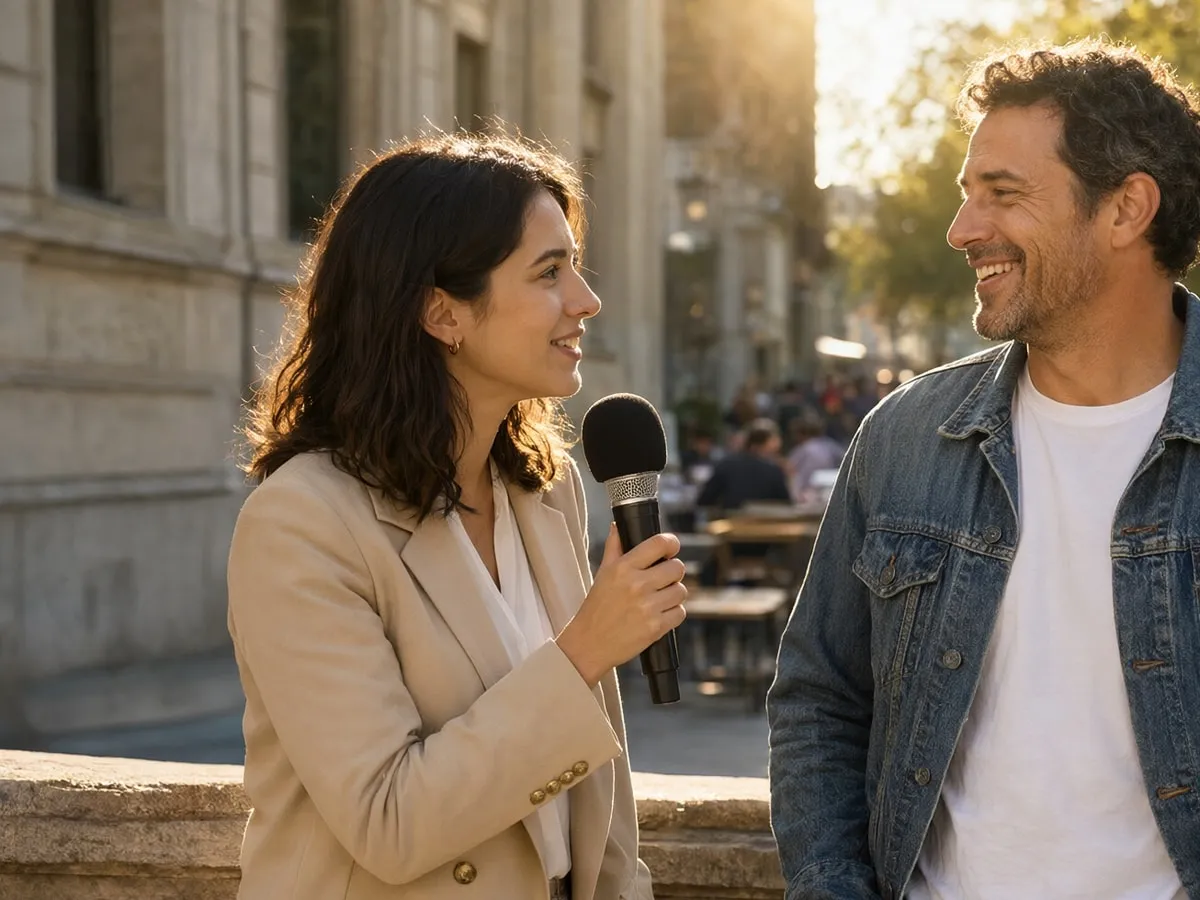
Lower-thirds over a wall, sky, or soft blur are the safest case. Check the first and last frame of each caption for a faint ghost.

The model rebuilds each frame. Expect slight softness at the edge of the repaired area; review at 100% before publishing.
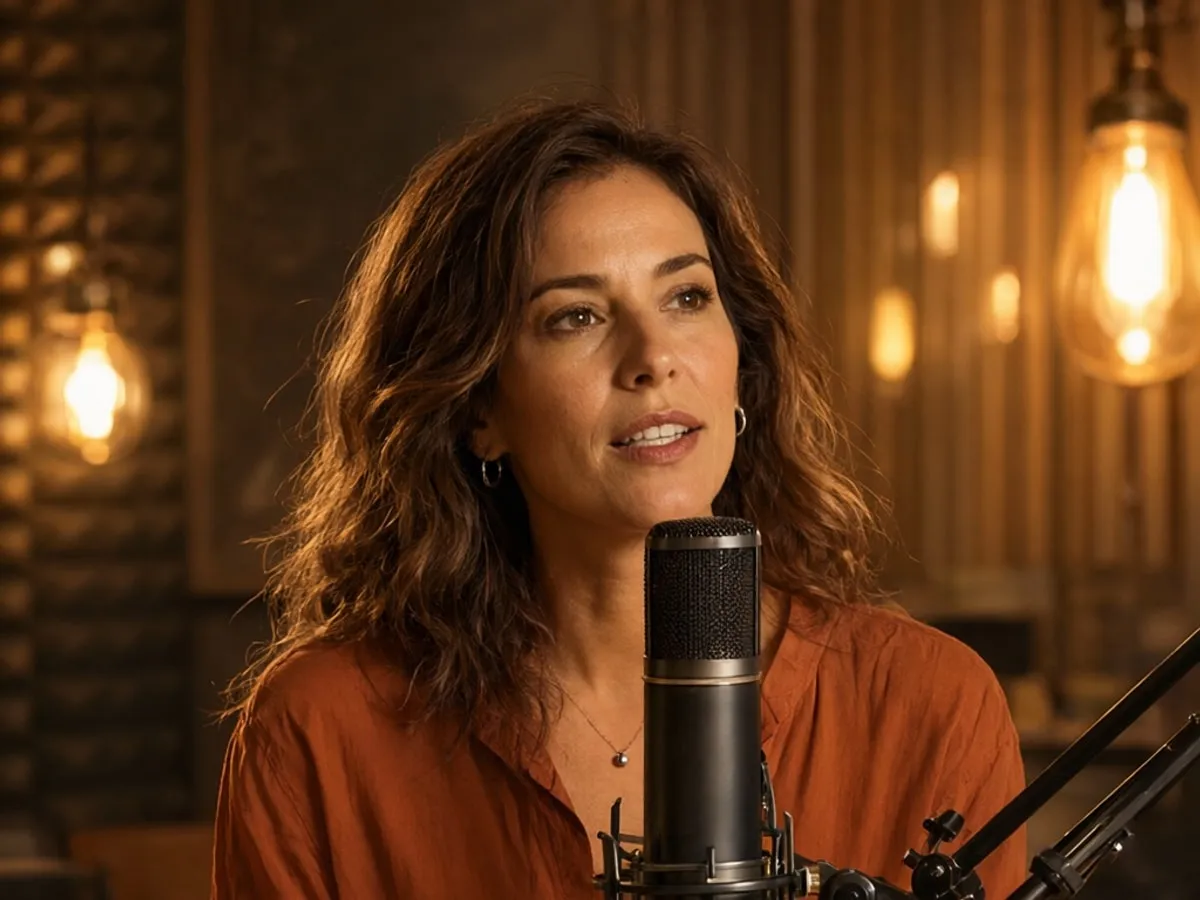
Faces, hands, and product labels can leave artifacts. If the hardest five seconds fail, plan a manual cleanup pass instead of a full render.
Live rendering processes the whole uploaded clip. Trim the hardest five seconds into a separate test clip before committing to the full file.
Try a sample clipWhere subtitle removal gets hard
Audio and frame size are unchanged. Review the result before you download.
Upload a videoThe sample never uploads. Live jobs go to the processing provider; see the Privacy Policy for retention.
FAQ
What works, what does not, and how to avoid wasting a render.
Still unsure? Email us before you spend credits.
support@cleanvideotext.comYes, when the subtitles are hardcoded. CleanVideoText tracks the caption area and rebuilds the background instead of covering it. The result depends on how much detail sits behind the text.
Soft subtitles are a separate stream and can be switched off or removed with a remux. Hardcoded subtitles are rendered into the frames, so every caption pixel is part of the picture.
No. Subtitles mode follows the lower caption band automatically. If captions move around the frame, switch to Select area and box the places they appear.
The workflow is designed to keep the original audio and timing, then re-encode an MP4. Check the downloaded file before publishing, especially on variable-frame-rate footage.
The sample is free. Signing in with Google adds 30 free credits every month: 30 seconds in Auto or Subtitles, or 15 seconds in Select area. Each job has a 5-second minimum. The uploaded clip must fit the quota, so trim a longer video first. Exports keep the source resolution and carry no CleanVideoText watermark.
Trim the MP4 to the part you need, upload it, choose Subtitles mode or Select area, mark the caption band, and render. MP4 and MOV up to 200 MB and 10 minutes are supported. The live engine processes the whole uploaded clip; trim before uploading to control the cost.
Use Subtitles or Select area instead of a crop. The workflow rebuilds the covered area and keeps the source aspect ratio, so the composition and frame size stay the same. Review faces and fine detail at 100% before publishing.
Yes. MP4 and MOV are supported, up to 200 MB and 10 minutes. Trim the file before uploading because the live engine processes the whole clip you upload.
Not in the live engine yet. It processes the whole file you upload, and the credit total follows that clip length. Trim a five-second test clip or the final segment in your editor before uploading.
No. The live job runs from this page, so keep the tab open until the download is ready. There is no email notification or background queue yet.
Not inside the app. A soft subtitle track is a separate stream, so remove it with a remux in FFmpeg, HandBrake, or your editor — no AI is needed. The AI workflow is for subtitles that were burned into the picture.
Footage you own or are licensed to edit, including client work where you have permission. Do not use CleanVideoText to strip a third-party watermark, credit, or attribution mark for redistribution.
Sign in with Google, upload a clip, and see what the background looks like after the text is gone.
Ask AI
A ready-made question about burned-in subtitles, soft tracks, and the trade-offs opens in a new chat.
The question is prefilled where the AI supports it. If not, it is copied to your clipboard — paste and send.


