
01
A 15-second social clip
Remove a stale caption from your own short clip and check the background before posting.
AI video text remover
Try the sample free in your browser. Every account gets 30 free credits each month: 30 seconds in Auto or Subtitles, or 15 seconds in Select area. No card, no watermark, no crop.
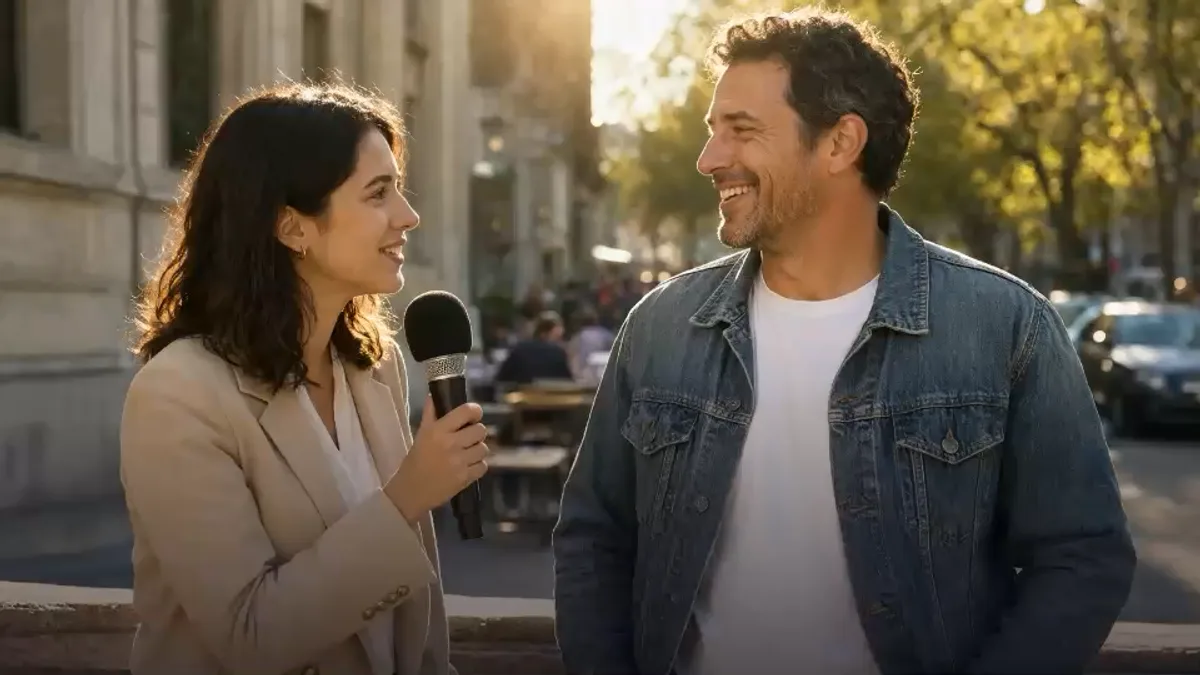
THIS CHANGES EVERYTHING
BEFOREAFTERor drop a file here
No clip handy? Try one of these



This demo renders in your browser. Your file never leaves your device.
The sample is free. Live rendering runs on our processing engine, and credits are available on the pricing page.
What free actually means
You can test the workflow on a sample clip without an account. The preview shows the before/after frame, lets you choose a mode, and keeps the original audio and frame size.
A signed-in account gets 30 free credits every month: 30 seconds in Auto or Subtitles, or 15 seconds in Select area. The uploaded clip has to fit inside that quota, and each job has a 5-second minimum. The free tier is metered, not unlimited.
Free exports keep the source resolution and carry no CleanVideoText watermark. If you need a longer clip, use a credit pack or trim the part you actually need.
Free vs paid
Match the job to the quota before you upload.
Rendering processes the whole uploaded clip, so the free credits must cover the entire file you upload. A 5-second minimum applies.
Where the free tier fits
Short clips, single fixes, and low-risk experiments.
Remove a stale caption from your own short clip and check the background before posting.
Clean a delivery note or handle from a short preview, then send it back for approval.
Test a lower-third removal on one lesson snippet before processing the full recording.
Try the caption cleanup on one UGC cut before you localize the whole campaign.
What the free test shows
Illustrative frames. The sample tells you whether the background rebuild holds up before you commit credits.
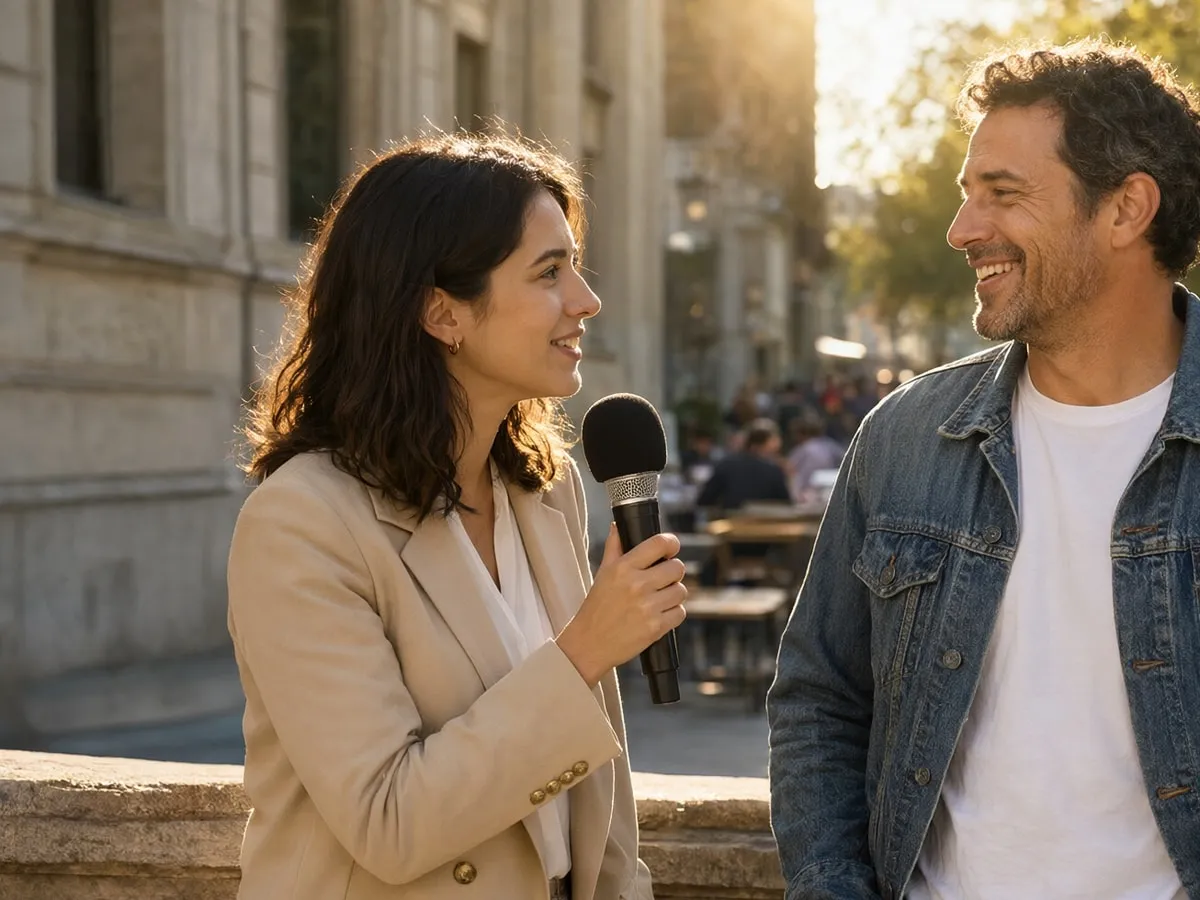
A short interview clip over a soft background is the safest free test. Check the first and last frame for a ghost.

The model rebuilds each frame. Expect slight softness at the repair edge; review at 100% before paying for a longer clip.
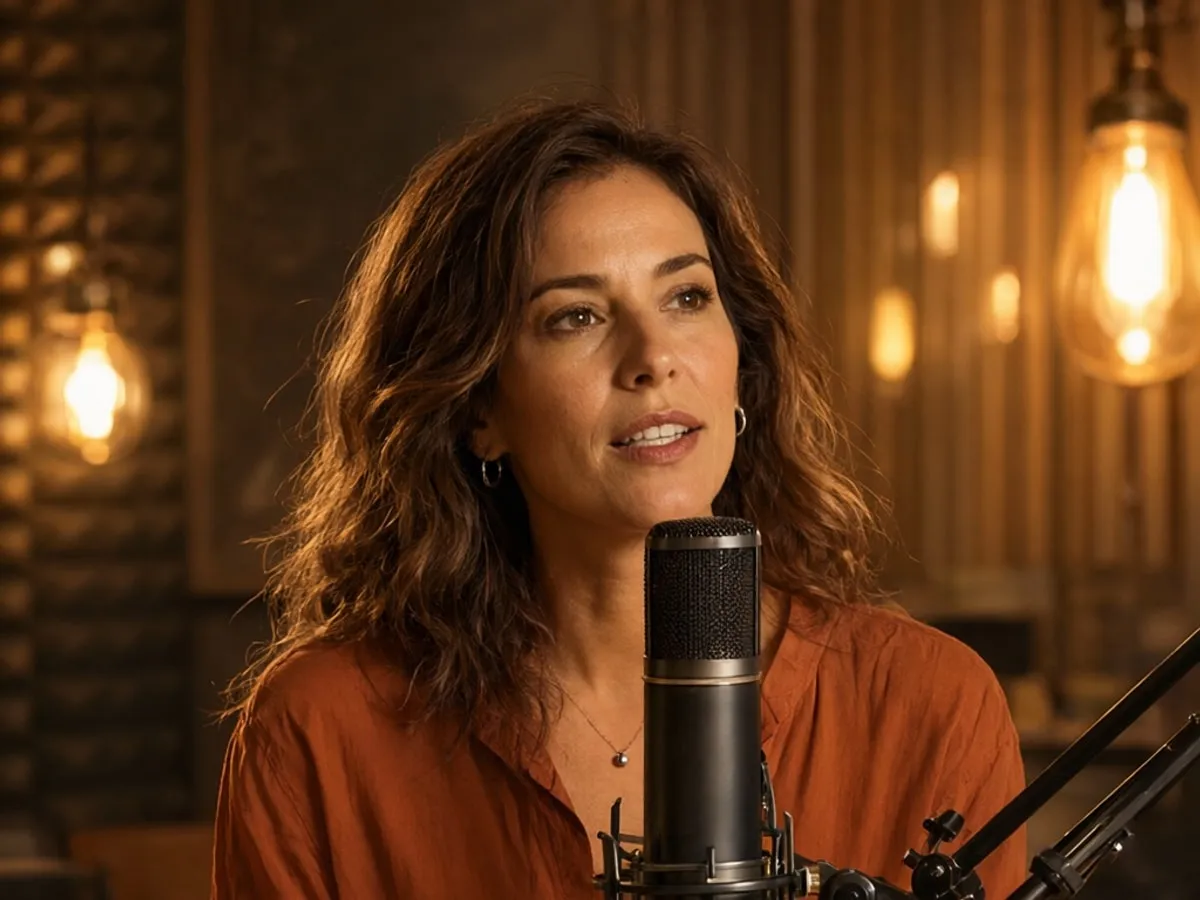
Faces, hands, and product labels can leave artifacts. If the test fails, stop and plan manual cleanup.
The live engine processes the whole uploaded clip. Trim a five-second test before using the full free quota.
Try a sample clipWhere the free tier stops
Audio and frame size are unchanged. Review the result before you download.
Upload a videoThe sample never uploads. Live jobs go to the processing provider; see the Privacy Policy for retention.
FAQ
What is free, what the quota covers, and when to buy credits.
Still unsure? Email us before you spend credits.
support@cleanvideotext.comThe sample is free in your browser. Every signed-in account gets 30 free credits each month: 30 seconds in Auto or Subtitles, or 15 seconds in Select area. The uploaded clip must fit inside that quota, and each job has a 5-second minimum.
No. Exports and the free monthly credits do not add a CleanVideoText watermark.
The uploaded clip must fit within 30 credits: 30 seconds in Auto or Subtitles, or 15 seconds in Select area. The sample is a fixed demo clip. Trim longer footage before uploading.
Not on the free quota. Auto/Subtitles get 30 seconds and Select area gets 15 seconds. The live engine processes the whole uploaded clip, so trim the part you need first.
MP4 or MOV, up to 200 MB and 10 minutes. Trim larger or longer files first. The uploaded clip is processed as a whole.
No. The sample works in your browser without an account. The 30-credit monthly quota requires a signed-in account.
Not inside the app. A soft subtitle track is a separate stream, so remove it with a remux in FFmpeg, HandBrake, or your editor. The AI workflow is for burned-in text.
Footage you own or are licensed to edit. Do not use the free sample to strip a third-party watermark, credit, or attribution mark.
Sign in with Google, upload a clip, and see what the background looks like after the text is gone.
Ask AI
A ready-made question about burned-in subtitles, soft tracks, and the trade-offs opens in a new chat.
The question is prefilled where the AI supports it. If not, it is copied to your clipboard — paste and send.


